Coming soon · Release date: November 13, 2026
UpdatedWarrior Quest Controls: Full Keybind and Voice Input Guide
Master Warrior Quest controls with every keyboard shortcut, voice input tip, and reroll key from the demo. Learn them before your first goblin parley.
Jump to
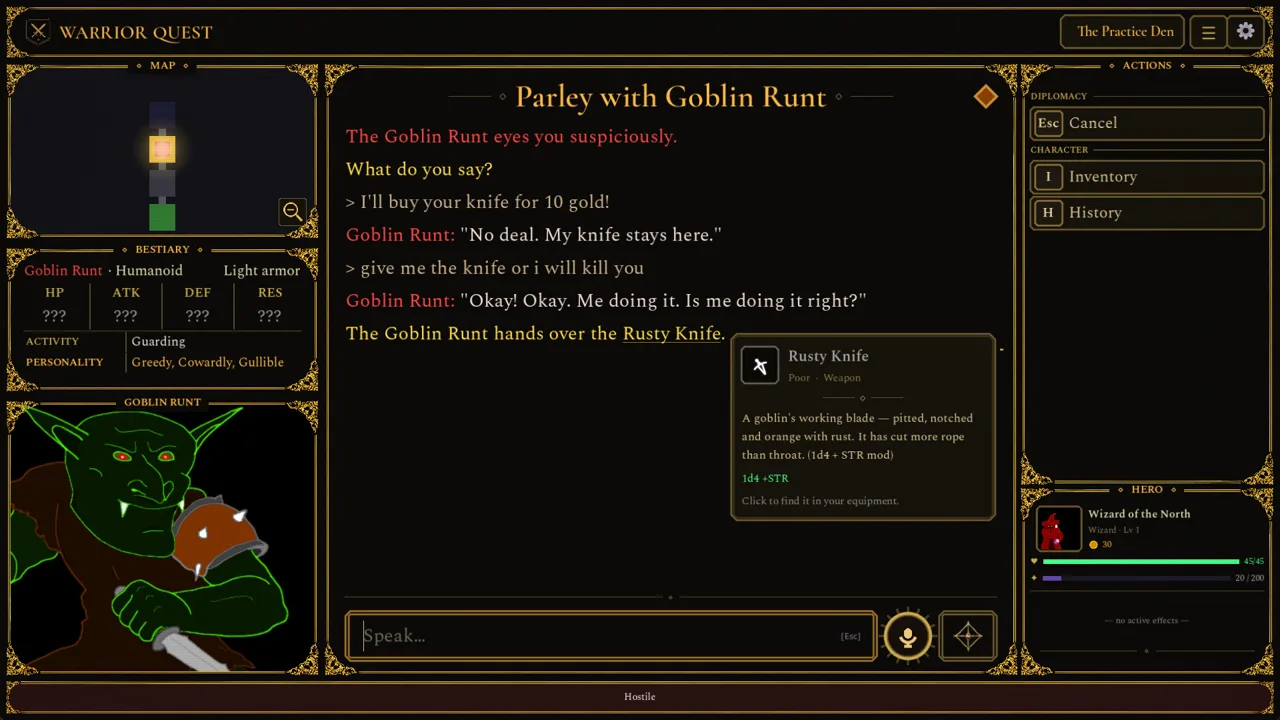
Most dungeon crawlers ask you to learn a handful of attack buttons. Warrior Quest also asks you to talk, since you can get through much of the game peacefully by bribing, bluffing or bargaining instead of swinging a blade. Knowing the Warrior Quest controls makes those conversations, dice rolls and dungeon crawls feel smooth instead of fiddly. The full game launches on Steam on November 13, 2026, and the free demo (Act I, about an hour long) carries your save over. You can learn every shortcut in the demo before release day.
Every Keybind at a Glance
The demo's patch history, up to version 1.11a, builds out a compact set of hotkeys. Enter mirrors Space for most confirmations, Tab is your fastest route to the character sheet, and Backspace spends a reroll.
| Key | What it does | Where it works |
|---|---|---|
| Space / Enter | Open chests, rest, pray, take stairs, roll, start a new game | Dungeon, rolls, title flow |
| Ctrl+Space | Start voice input (same as the mic button) | Conversations |
| Esc | Cancel voice input | Conversations |
| Backspace | Reroll a failed check | Roll cards |
| Tab | Open the character sheet | Town and diplomacy |
| I / E | Open the character sheet | Town |
| J | Open the Delve Journal with quest objectives | Delve Journal |
| B | Beckon a waiting friend to come along | Dungeon |
| 1 / 2 / 3 | Quick-select options | The Ample Dwarf tavern |
| F9 | Pause voice playback | Top bar |
| F10 | Fast-forward voice lines | Top bar |
| L | Swap between combat actions and the log | Vertical recording layout |
| Ctrl+Shift+F8 | Toggle the experimental vertical recording layout | Dungeon (also via the menu) |
Version 1.11 standardized keyboard hints and selection highlights across the whole interface. If you forget a binding, check the on-screen prompts.
Talking Your Way Through: Typing and Voice Input
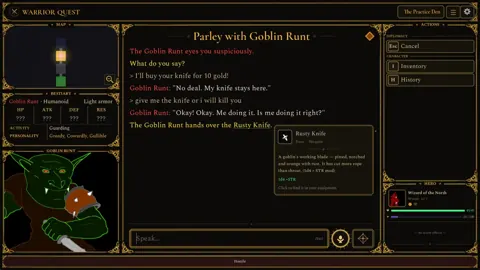
Diplomacy is the heart of Warrior Quest. You type or speak whatever you want, and the game's local AI parses it into requests, threats, bribes and lies that the dice then resolve.
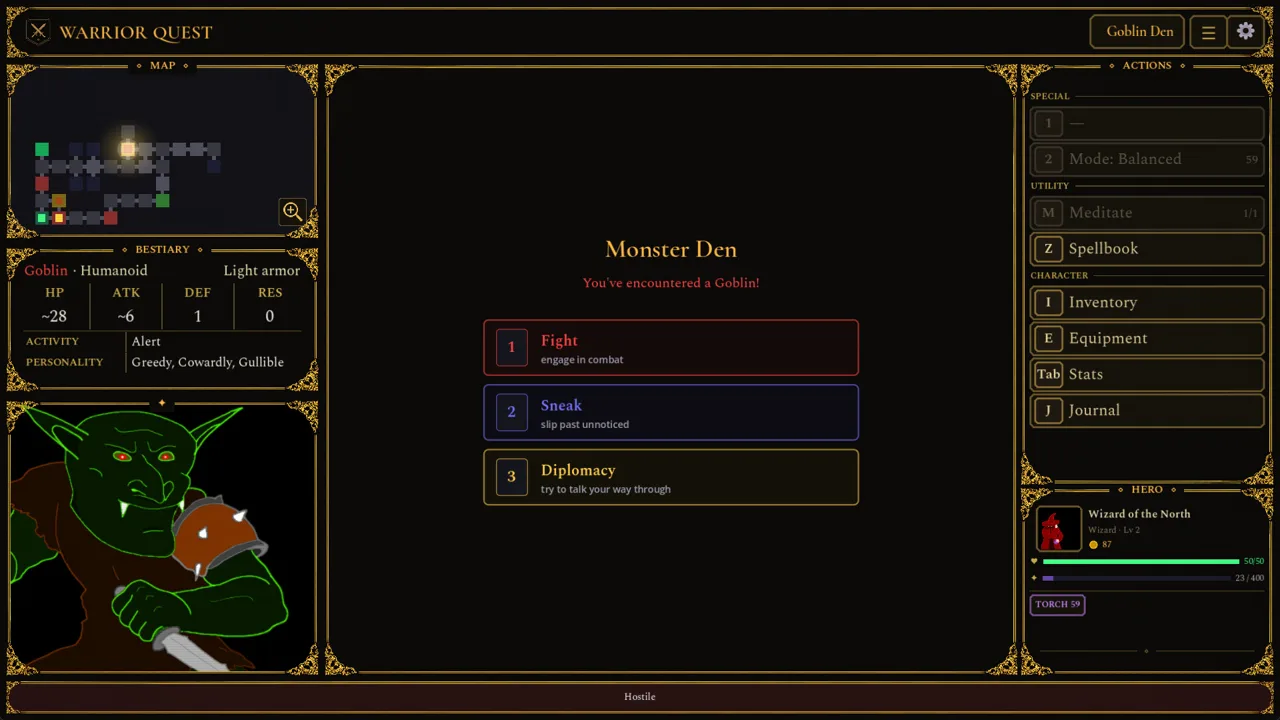 Image: Steam / Wizard of the North
- Typing: Click into the input box beside the NPC and write your line in plain English. Questions mixed with other statements work, and so do phrases like "How much gold do you want?" or "I'll give you 7".
- Voice: Hit the mic button next to the input box or press Ctrl+Space. Press Esc to cancel mid-recording. Since update 1.11a, the mic button shows your voice level while you talk. Words still being recognized are marked until the final transcription settles.
- Brave vs. Cautious: Brave sends your spoken message the instant you finish. Cautious drops it into the editor so you can fix a misheard word first. Use Cautious if you have a noisy room or an unusual accent. A misheard threat can turn a bribe into a brawl.
- Character sheet mid-chat: Press Tab during diplomacy to check your gear and attributes before you promise something you can't deliver.
- Leaving: The Move on button shows a spinner when a creature still has a reply coming. Pressing it queues your exit until that line finishes. Since 1.10, a single press is enough to leave while a reply is pending.
- Voice playback: Press F9 to pause narration and F10 to fast-forward through a voice line.
Everything runs offline on your PC, so voice input works without an internet connection.
Dice Rolls, Rerolls and Confirmations
Almost everything risky goes to the d20, including conversations, traps, locked chests and road encounters. Version 1.11 made the dice-roll cards clearer. Locked-chest cards now show your chosen method, the difficulty and how many lockpicks you have left.
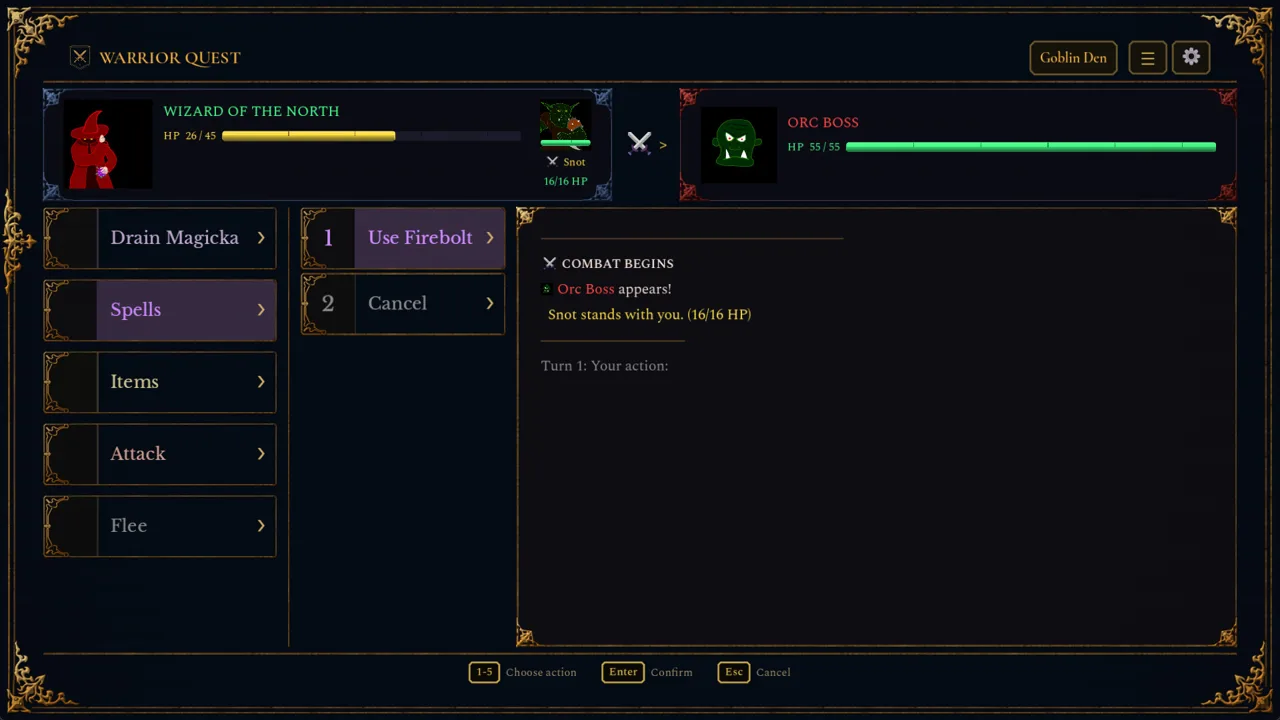 Image: Steam / Wizard of the North
- Press Space or Enter to roll.
- Failed a check? Click Reroll or press Backspace. If you accept the result instead, you keep the reroll for later.
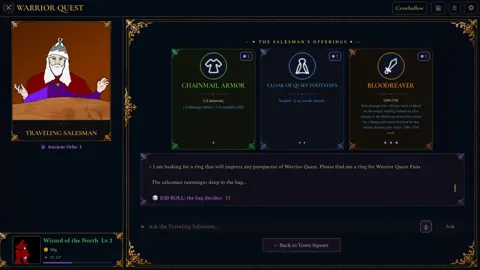
- Earn more rerolls by listening to rumors at the Ample Dwarf. You get one reroll for every five rumors and an attribute increase for every ten. Press 1, 2 and 3 there to move through options quickly.
- Roll cards block shortcuts for any actions hidden behind them, and voice input won't start while a card is up. A stray keypress won't skip past a result you haven't seen.
Save rerolls for diplomacy and trapped chests rather than burning them on minor checks.
Exploring Dungeons and Managing Your Party
The dungeon side of the controls is about choosing how you move and who comes with you.
 Image: Steam / Wizard of the North
- Exploration modes: Open the Mode button under Special to pick Balanced, Stealth or Investigative. Stealth automatically tries to sneak past creatures. Investigative helps you spot traps. Both cost more time per step. Creatures that catch you sneaking can challenge you to talk before combat starts.
- Companions: Press B or click Beckon to bring a waiting friend along.
- Journal: Press J for the Delve Journal, which lists the same quest objectives as the Townmaster's hall.
- Loot: Hover over loot names to preview an item's description and stats. Inventory and gifting lists scroll with keyboard selection.
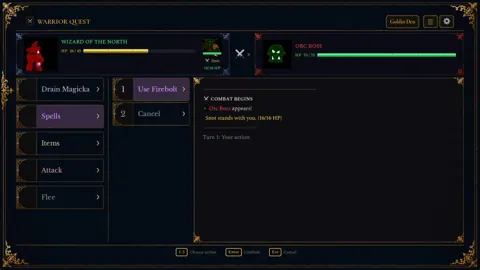
- Combat: Enemy opening attacks show up as Turn 0, separate from your first turn. The game is fully playable without timed input, so take as long as you need to choose an action.
Town Shortcuts
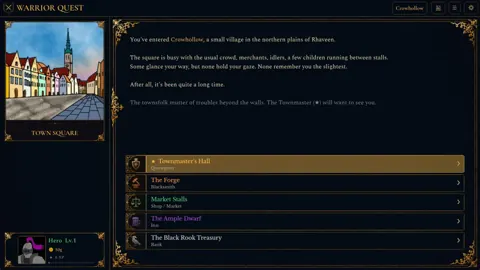
In Crowhollow you have three ways to open the character sheet: I, E or Tab. Use whichever is closest to your hand. The town square also shows your current quest. Level-up choices appear as colored cards that give a short description, and hovering or focusing a card shows its full rules.
Display, Recording and Comfort Options
- Performance modes: Pick Standard, Safe or Light from the title screen. The game recommends one for your graphics card and remembers your choice. Safe mode fully supports 6 GB cards with complete conversations. Light mode runs on 4 GB cards with simpler characters.
- Cursor: Switch from the custom game cursor to your system cursor in the settings.
- Roll Marks: Turn these on to show successes and failures in the log.
- Vertical recording layout: Press Ctrl+Shift+F8 or use the menu. It's still experimental, but it supports combat, and L flips between actions and the log.
- Other features: Custom volume controls, adjustable difficulty and save-anytime support round out the options.
Grab the free demo on the Warrior Quest Steam page to practice these bindings before launch.
FAQ
Does voice input work the same on Mac?
The mic button works on Mac, but version 1.10 removed the Ctrl+Space hint from macOS because it was incorrect. Click the mic button beside the input box instead. The Mac build needs an Apple Silicon Mac (M1 or newer) running macOS 14 or later.
Can I accidentally start a new character from the death screen?
Not anymore. Update 1.10 fixed a Space-key conflict on the death ledger that could start a new character by accident. After you finish the demo, starting a new game opens the save-slot picker so your completed hero isn't overwritten.
Continue with
 Warrior Quest Dice Rolls: How Checks, DCs and Rerolls WorkLearn how Warrior Quest dice rolls decide diplomacy, traps, chests and road encounters, plus how rerolls, DCs and attribute modifiers swing each d20 check.
More in Guide
Warrior Quest Achievements: Full List, Rarity & Unlock Tips
Discover all Warrior Quest achievements from the demo, how rare each one is, and unlock tips for Blood Shrines, the Goblin Runt, and 20-point attributes.
Warrior Quest Diplomacy Guide: Bribe, Bluff, and Recruit
Master Warrior Quest diplomacy: how free-form talk, dice rolls, bribes, threats, and recruiting work, plus tips to talk your way past goblins and bosses.
Warrior Quest Exploration Modes: Stealth vs Investigative
Warrior Quest exploration modes explained: how Balanced, Stealth, and Investigative change sneaking, trap spotting, and pacing. Learn when to use each.
Warrior Quest Guide: Classes, Diplomacy, and Demo Tips
Our Warrior Quest guide to classes, AI diplomacy, rerolls, exploration modes, and PC specs, so you can talk, sneak, or fight your way through Crowhollow.
Join the community
Official channels for news, updates and player help: